iOS Guide
Applicasa frees mobile developers from spending countless hours or days setting up backend data services to power, analyze, and monetize their applications. One of our primary goals is to get you up and running, ready to build your app in about 10 minutes. If you haven’t installed the Applicasa framework and SDK yet, use the Getting Started guide to get a your app up and running with Applicasa.
Objects
Objects are the fundamental building block of any modern application. Applicasa takes a unique approach among its peers in delivering a remote backend service that allows you to interact with data objects as native class objects, as opposed to the prevailing pattern of using a single object class—leaving all the work on you to properly identify different objects by string class names and other properties.
Applicasa’s SDK generates object classes based on the state of your application’s datastore and any modifications you have made. This helps grant greater code clarity, lessens the potential for errors that can arise from improperly identifying a class name string, and enables far more flexibility for developers to customize the generated SDK by enhancing the classes themselves within their application.
Create Objects
Objects in Applicasa are built around the datastore’s structure itself. This means that, beyond the default objects provided by Applicasa to your application, each app is likely to be different from another, depending on how developers have created their data objects on the web console.
Applicasa comes with a short list of useful, default object classes that will be used in most apps: User, VirtualGood, VirtualCurrency, and VirtualGoodCategory. In this guide, we will assume a custom data object called Foo. We created the new object via Applicasa’s web console, and it was downloaded as part of the SDK (which we included using the steps above for including the Applicasa SDK). Creating new datastore objects is covered here, from the Backend Datastore portion of this guide.
Let’s look at how to create a new Foo instance.
1 2 3 4 | |
Save Objects
All Applicasa-generated SDK classes use the saveWithBlock: method for saving new and existing datastore objects. Applicasa takes care of knowing whether a given object has an ID value or not, and takes the appropriate action to save new objects or update existing objects.
1 2 3 4 5 6 7 8 9 10 | |
Please note, saveWithBlock: expects a block argument that enables a developer to customize responding to successfully saving objects or errors, if any. This block must match the signature (NSError *error, NSString *itemID, Actions action).
Because saving is a potentially remote action that requires a network, Applicasa executes saveWithObject: on a separate thread, so you don’t ever have to worry that saving will interfere with or degrade your users’ experience. Complete details on saveWithBlock: can be found in the official LiObject documentation.
Retrieve Objects
Retrieving objects from the Applicasa datastore is a very straightforward task for all types of objects.
1 2 3 4 5 6 7 8 | |
Because Applicasa generates custom native classes for your application on the fly, based on the Objects defined for your application via the web console, the block argument will always follow the same signature, but the type of class object returned will always match the calling class. Thus, if you are calling getById:queryKind:withBlock: from the User class, the block signature will be (NSError *error, User *object). This ensures that inside your block, you are guaranteed to be working with a properly typed object of the calling class.
Applicasa also provides a great deal of power to your queries via the queryKind parameter. This allows you to specify whether you want to perform a network query that looks up all related objects for their most recent values (FULL); a network query that only retrieves deltas of the most recent data for the given object itself, without looking up related objects (LIGHT); a modified LIGHT query that returns a 10-record paginated list of objects (LIGHT_WITH_PAGER); or a local-only query that hits the offline sqlite datastore Applicasa creates to ensure your application keeps working even when a network connection does not exist (LOCAL).
There are, of course, more complicated ways to retrieve objects and use them in your application. Check the Queries section for more complete information. Complete details on getById:queryKind:withBlock: can be found in the official LiObject documentation.
Update Objects
Updating objects is just a variation on saving objects, with no fundamental difference. You use the same saveWithBlock: method as you did with a brand-new object.
1 2 3 4 5 6 7 8 9 10 11 12 13 14 15 16 17 18 | |
Delete Objects
Deleting objects is, like saving and updating, a common action that uses a single method across all generated SDK object classes: deleteWithBlock:.
1 2 3 4 5 | |
Please note, deleteWithBlock: expects a block argument that enables a developer to customize responding to successfully saving objects or errors, if any. This block must match the signature (NSError *error, NSString *itemID, Actions action).
Because deleting is a potentially remote action that requires a network, Applicasa executes deleteWithObject: on a separate thread, so you don’t ever have to worry that saving will interfere with or degrade your users’ experience. Complete details on deleteWithBlock: can be found in the official LiObject documentation.
NOTE: There are certain default objects, such as User, which cannot be deleted via code. Attempting to do so will raise an NSError or NSException in your application.
Object Relationships
Applicasa makes handling object relationships as easy as possible because of our unique approach to using native objects. Accurate handling of relationships between objects really couldn’t be simpler.
When we started with creating Objects, we had a simple class, Foo, which has an owner property. The owner field was defined via the web console as a foreign key relationship to the Users object. With Applicasa’s native-class approach, here is what some properties might look like in the downloaded SDK class for Foo:
1 2 3 4 5 6 | |
Setting or updating relationship properties is as simple as assigning an object to them:
1 2 3 4 5 | |
Queries
A Word on Local Queries
Applicasa, unlike its competitors, knows that there are times when your users are not going to have a network connection, and your app needs to continue working flawlessly in these scenarios. We also know that putting all the work on developers for creating local copies of remote datastores only adds to the development time and burden. To help solve this problem, Applicasa creates a local sqlite database that mirrors and stays in sync with remote data. When a network connection is not present, Applicasa will return results from the local database. However, to improve the performance of your app and give you as much control over how you query data, you can specifically tell Applicasa to perform local queries only. This is covered in more detail in the discussion of Query Types.
Query Types
Applicasa tries to offer a great deal of flexibility in its querying capabilities. As you work with queries, you’ll notice that every query method has a queryType parameter. The queryType parameter is a vital argument to understand in the context of how Applicasa performs queries.
Becuase Applicasa builds and manages a local database to cache object lookups and increase both performance and offline reliability, queries default to sending delta-only results. This means that only changed data is communicated when you query objects. Applicasa uses these delta query results to then silently update the local database to keep as much data locally available as possible and ensure it can successfully query for additional deltas in the future. This becomes particularly important to keep in mind when querying for objects that have relationships to other objects.
Let’s briefly cover the possible values of queryType, and how they impact the queries you perform in your applications.
queryType: FULL
A FULL query is the most expensive type of query you can perform in your application. A FULL query is always going to perform a network-based query and, more importantly, is going to go beyond the simple delta-only default query, and will also lookup changed data on any related objects that have been saved as a relationship on the queried objects.
For example, in our Foo object, we have a relationship to the User class. If we perform a query for the foo instance we created and saved above, and set the queryType parameter to FULL, Applicasa will not only look up the delta for foo, but will also look up the delta for the foo.user object, to ensure that all data returned is as up-to-date for every object and its related objects. As your data objects become increasingly more complex, with multiple related objects attached to a particular instance, FULL queries will become increasingly more expensive in your application.
queryType: LIGHT
A LIGHT query is less expensive than a FULL query and can be used to improve query performance of objects that either have no related objects or objects whose related objects are known by the developer to either have no changes or have unimportant changes for the given context.
For example, if we are querying for an array of Foo instances to display them to the current user, but know that we don’t need to worry about the related user data being up-to-date (because, say, we’re querying only for Foo objects owned by the current user and already know all about the current user), we would want to execute a LIGHT query, instructing Applicasa to only bring back the Foo deltas, ignoring the more expensive lookup of pulling back results repeatedly for every related foo.user object.
queryType: LIGHT_WITH_PAGER
Just as a LIGHT query is less expensive than a FULL query, the LIGHT_WITH_PAGER option allows even more improvement to query performance. This queryType instructs Applicasa to automatically limit the number of results that are returned by the query—which defaults to 10 records, unless the query is modified via addPagerByPage:RecordsPerPage:.
queryType: LOCAL
A LOCAL query is exactly what it sounds like—an explicitly local-only query that pulls objects from the local sqlite database and does not use the network. This is the least expensive type of query and is useful in situations where a developer might know that there is no need to go to the network for a piece of data becuase the local copy should be unchanged.
For example, if our Foo object can only be owned by the current user, and cannot be modified by other application users, it would be a prime candidate for issuing LOCAL queries in an application, because any user-inititiated changes should, by the time of querying, already be in the local database and not require a network connection to fetch.
Query by ID
Querying for an object by its ID is the simplest way to find any given object. This is a very straightforward task with Applicasa.
1 2 3 | |
Because Applicasa generates custom native classes for your application on the fly, based on the Objects defined for your application via the web console, the block argument will always follow the same signature, but the type of class object returned will always match the calling class. Thus, if you are calling getById:queryKind:withBlock: from the User class, the block signature will be (NSError *error, User *object). This ensures you are guaranteed to be working with a properly typed object of the calling class inside your block.
Query Filters
Applicasa uses two special classes called LiQuery and LiFilter to create custom queries. These include simple queries, relationship queries, location queries, and even more complex queries that can be combinations of any of these. The LiFilter class is used to build up custom filters that are then passed into an LiQuery instance to execute queries of all kinds.
Building simple filters:
1 2 3 4 5 | |
Combining multiple LiFilter instances creates ever more complex filters:
1 2 3 4 | |
Simple Queries
Simple queries typically only use one filter at a time. Applicasa provides expressive power as well as protection against errors by allowing developers to use enum values for field names, all made available via LiDataTypes.h. Because queries are executed via class methods, Applicasa is aware of the calling class, which means developers don’t have to tell Applicasa which type of object they are querying—as long as you’ve provided field names that exist on the object, Applicasa will handle the work of resolving those field names on the proper class to execute a query. This means that User queries will properly search User objects, Foo queries will search Foo objects, and so on.
For example, to find all users who are older than 18:
1 2 3 4 5 6 7 8 9 10 11 12 13 14 15 | |
Local Queries
Because Applicasa keeps a local copy of your application data in an sqlite database, developers have the ability to restrict queries to not be network-bound when desired. Applicasa provides two ways to explicitly perform local queries on any given class—via the queryType parameter and SQL-based queries. We introduced the first of these methods earlier when we explained Query Types.
Here’s an example of performing a local-only query by passing the LOCAL queryType argument alone:
1 2 3 | |
For more advanced needs with SQL-based local queries, see Local SQL Queries below.
Relationship Queries
Relationship queries are another frequently used query in modern applications. Applicasa makes this as easy as possible on developers because of its unique approach to using native objects. To find all Foo objects that are owned by the current user, for example:
1 2 3 4 5 6 7 8 9 10 | |
Complex Queries
Sometimes, developers may need to perform rather complex query operations. Applicasa provides the ability to continue building filters of ever-increasing complexity by combining them together into configurations that express exactly what you’re trying to find:
1 2 3 4 5 6 7 8 9 10 11 12 13 14 15 16 17 18 19 20 21 22 23 24 25 26 27 28 29 30 31 | |
Location Queries
Location-based searching has increased in popularity in today’s mobile applications, and Applicasa offers powerful location queries for all location-aware objects.
1 2 3 4 5 6 7 8 | |
Local SQL Queries
For more advanced needs, developers can opt to query the local sqlite database using raw SQL directly. Every Applicasa-generated class included in the SDK provides a getLocalArrayWithRawSQLQuery:andBlock: method.
To make SQL querying as painless as possible, developers only need to provide the WHERE clause. For example, to select all Foo objects whose description field is not NULL:
1 2 3 4 | |
NOTE: When using the getLocalArrayWithRawSQLQuery:andBlock: method, take note that this query does not accept a queryType parameter—this is an explicitly forced local-only query that has no network-based equivalent.
Again, only the WHERE clause is required for a local SQL-based query.
Paginating Query Results
There are times where returning the entire set of matching results is undersirable—because the UI requires fewer results, because the developer knows a smaller result set is sufficient, or other reasons. There may also be times where the LIGHT_WITH_PAGER query type’s 10-records-per-page default does not meet developer needs. This is the perfect scenario for leveraging the flexibility provided by paginated queries. Developers can build up filtered queries as usual, using the addPagerByPage:RecordsPerPage: method to control the result sets returned.
1 2 3 4 5 6 7 8 9 10 11 12 13 14 15 16 17 | |
Files
Applicasa provides support for saving files to custom object fields via the SDK, as well as for retrieving saved file URLs for objects returned from datastore queries.
Saving Files
Applicasa supports saving three file types: Image, Text, and Pdf. It is up to developers to create the file(s) they wish to upload, while Applicasa’s SDK handles background filenaming, uploading, and saving retrievable URL values to the object field receiving the file.
An example of uploading a file to the Foo object’s FooFile field, defined as a File type via the web console:
1 2 3 4 5 6 7 8 | |
Retrieving Files
Once a file or image is saved to an object, Applicasa returns those fields as NSURL properties to allow easy retrieval over a network connection. This avoids slowing applications down by automatically downloading files and images before an application has asked to do so.
In our previous example for saving files, we saved a text file to a Foo instance. Here, we retrieve the saved file and load it into a usable object:
1 2 3 4 5 6 7 8 9 10 11 | |
NOTE: Retrieving files is a potentially UI-blocking action. Always follow platform guidelines and best practices for performing network actions in the background to avoid locking the main UI thread, which can create a negative user experience.
Push Notifications
Prepare App for Push
Creating Notifications
Sending Notifications
In-App Notifications
Specifying Recipients
Scheduling Notifications
Users
Users are an integral part of any application, and Applicasa provides robust support for a variety of essential user-focused operations. These include registration and authentication, modifying and updating user information, querying and locating users, and more.
Developers can even extend the built-in User class by adding any number of additional fields via the web console. These customized fields are, as with all Applicasa datastore objects, automatically available for immediate use. When a developer is finished customizing the built-in class, s/he only needs to download an updated SDK and save it to the Xcode project.
Beyond the SDK operations, Applicasa builds much of its power on analyzing user usage and spending behaviors to intelligently provide developers with user-targeted promotions and other monetization strategies. Careful attention to how an application manages users greatly increases the value developers find in Applicasa’s platform.
Get Current User
Most user-focused actions are performed on the current application user. The current user is always available via [User getCurrentUser]. Example usage is shown below:
1 2 3 4 | |
NOTE: Applicasa ensures there is always a current user object, whether anonymous or registered/authenticated. Accessing getCurrentUser is the best way to guarantee registration, authentication, and user editing are always performed against the active app user. Operations intending to manipulate users other than the one using the application should be careful not to use getCurrentUser.
Registering Users
Registering new users to an application requires a username and password. Once registration completes, Applicasa converts the anonymous user into a registered user and updates user properties (such as userName, userIsRegistered, and userRegisterDate). Afterward, a developer can further update the User instance with additional details like any other datastore object.
1 2 3 4 5 6 7 | |
NOTE: In most situations, registration should be completed before attempting to update other user properties to ensure an application is not saving data to anonymous user instances. This is especially true of important information like names, emails, and other data an application may depend on for proper operation.
Because Applicasa updates user data at registration, converting an anonymous user into a registered user, there is no need to authenticate users afterward. Newly registered users are treated as freshly authenticated users, so authentication should only need to be used when a non-authenticated or unregistered user is logging in with an existing username and password pair.
Authenticating Users
Similar to registering users, authenticating users requires a username and password. Once authenticated, Applicasa returns all user data to the current user object.
1 2 3 4 5 6 | |
NOTE: If authentication fails, inspect the error codes and messages that are returned to the block to determine how to proceed. For example, if Applicasa reports back that credentials are invalid, a developer may want to offer the options of trying again or registering a new user account.
Logging Out
As with authentication, the User class provides easy handling of logging users out of an application:
1 2 3 4 5 | |
Changing Usernames
Some applications may want to allow users to change their usernames from within the app. This is an easy to change to make, requiring the new username and current password for verification:
1 2 3 4 5 6 | |
NOTE: Applicasa does not impose any limits on username changes, leaving it up to developers to implement their own policies for handling username changes. Adding constraints can be accomplished in a number of ways—such as adding a special field to the User object via the web dashboard, a custom method that updates that value whenever username changes occur, and a check that n changes have not already occurred.
Changing Passwords
Changing user passwords is a simple task, requiring a new password and the current password for verification:
1 2 3 4 5 6 | |
Forgotten Passwords
If a user has an email address saved to their user record, Applicasa can provide password recovery with the forgotPasswordForUsername:withBlock: method.
1 2 3 4 5 6 | |
NOTE: forgotPasswordForUsername:withBlock: requires an email address to be saved to the user’s record. Developers will want to either ask for this up front or at time of password recovery and save the email address before calling forgotPasswordForUsername:withBlock:.
User Location
Applicasa delivers a convenient set of user-focused location features through the LiUserLocation class to enhance applications that require such functionality.
The user’s last-saved location is available via the userLocation property. Retrieving a user’s current location can be done with getCurrentLocationWithBlock::
1 2 3 4 5 6 | |
Updating a user’s location is done with the updateLocationWithAccuracy:distanceFilter:andBlock: method:
1 2 3 4 5 6 7 | |
Some applications may require automatic location updates as user location changes over time. This is easily done, as well, with updateLocationAutomaticallyWithAccuracy:distanceFilter:andBlock::
1 2 3 4 5 6 7 | |
Some events, such as losing network connection, may require an application cease automatic location updates for a time. This can be accomplished via the stopAutoUpdate method:
1 2 | |
Facebook integration is easy with Applicasa. Facebook’s SDK can be used alongside Applicasa’s for advanced Facebook functionality. However, Applicasa has integrated Facebook authentication and friend lookups with the User class to ease the time and effort required for developers to build such functionality on their own.
Prepare Application
Using Facebook with your application requires following Facebook’s getting started guide. You can do this while setting up your application to use Applicasa’s SDK and frameworks.
A few reminders for getting started with Facebook and Applicasa:
- If you haven’t already created a Facebook app, you should do so now.
- Add
FacebookAppIDandURL Schemesto your application’s .plist file. - Add the following method to your application delegate:
1 2 3 4 | |
- Ensure your application delegate is also the
LiCoreInitializeDelegate, and add the following to your implementation of thefinishedInitializeLiCoreFrameworkWithUser:isFirstLoad:method:
1 2 3 4 5 6 | |
Authenticating Users
Applicasa’s User class includes Facebook authentication out-of-the-box. When a user authenticates via Facebook, Applicasa will return their user record if they’ve already been registered, or register a new user record if this is a first-time authentication.
Authentication via Facebook is simple:
1 2 3 4 5 | |
Finding Friends
Finding a user’s Facebook friends is a common task Applicasa makes easy once a user is authenticated.
1 2 3 4 5 | |
Logging Out
Releasing an authenticated Facebook session for the active user is as easy as the standard logout method.
1 2 3 4 5 | |
In-App Purchases
One of Applicasa’s core goals and offerings is a complete set of tools for both enhancing and simplifying how developers handle In-App Purchases. This includes support for managing virtual currencies, virtual goods, purchasing, and user inventories.
Before digging into the particulars of Applicasa’s IAP API, we should discuss Applicasa’s approach to handling In-App Purchases, which will help in making good decisions about which products to create in Apple’s IAP system, and how to handle managing products via Applicasa’s developer web console.
Applicasa IAP Overview
Applicasa builds on the model of setting up in-app virtual stores, through which users can earn or purchase virtual currencies with real-world money through Apple’s IAP platform. Developers use Applicasa’s web console to manage their virtual currencies, including providing images that will be used in an app, as well as their Product ID, price, description, and other properties.
Users then spend these virtual currencies on virtual goods managed entirely through Applicasa. Developers can create any number of virtual goods and deliver them directly to their applications without having to add them to the App Store. This creates a lot of flexibility in adding new items and content to an application whenever a developer wishes. In addition to creating virtual goods, Applicasa also provides for organizing these items into virtual good categories that can be used for highly customizable in-app store displays.
Most in-app purchase actions are easily handled through the IAP class, a class-based API that abstracts common actions into handy methods that work across currencies, goods, and categories.
Lastly, Applicasa’s in-app purchase support includes helpful methods for querying currencies, goods, categories, user inventory, and user balances.
NOTE: Currently, VirtualCurrency, VirtualGood, and VirtualGoodCategory objects are managed entirely through the web console, and cannot be created or modified via code.
While each of the native classes for these objects contain various actionable methods, we recommend using the IAP class API only, as it provides a single interface through which developers can perform nearly all tasks.
Prepare App for IAP
To leverage Applicasa’s IAP functionality, you must setup your app and the products you will be selling through Apple’s Provisioning Portal and iTunes Connect sites. This is a complicated process developers will want to take extra care with, to ensure everything works properly. More information can be found at Apple’s In-App Purchase for Developers site. Apple also offers a comprehensive step-by-step Technical Note that guides developers through the process.
Virtual Currency
The VirtualCurrency class is used to manage a user’s in-game credit/balance. Applicasa provides both a MainCurrency and SecondaryCurrency type to allow developers a great deal of freedom in their purchasing paths. Developers can use only the MainCurrency type, if desired, or they can build more complicated virtual stores, requiring that they identify which currency type to use when purchases are made.
Querying Currency
Increasing app revenues with virtual stores often requires offering users the chance to purchase additional currency beyond that which they’re earning through in-app mechanics. This is the first task Applicasa makes easy for developers, freeing them from the former need to build such functionality in-house.
Returning virtual currency to an application with getVirtualCurrenciesWithBlock::
1 2 3 4 5 | |
NOTE: As with other Applicasa datastore queries, the items returned to the block in the array parameter will be VirtualCurrency instances. Developers can either handle the results inside the block or pass them to another method.
Buy/Give/Use Currency
Applicasa provides three default IAP class actions developers can use where virtual currencies are concerned: buy, give, and use.
Buying VirtualCurrency is handled with buyVirtualCurrency:withBlock:, and expects a VirtualCurrency instance:
1 2 3 4 5 | |
Giving VirtualCurrency to a user, say as an in-app reward, is handled with giveAmount:ofCurrencyKind:withBlock:. The currencyKind argument can be either MainCurrency or SecondaryCurrency.
1 2 3 4 5 6 | |
If, for some in-app scenario, you wish to use VirtualCurrency without it being tied to a purchase, you can accomplish this with useAmount:ofCurrencyKind:withBlock:. As with giving currency, the currencyKind argument can be either MainCurrency or SecondaryCurrency.
1 2 3 4 5 6 | |
Virtual Goods
The VirtualGood class is used to manage all sellable items that are purchasable with VirtualCurrency and may show up in a user’s inventory.
Querying Goods
It will be necessary to query VirtualGood items whenever you wish to display them in a purchasing view, an inventory list, and the like.
Returning virtual goods to an application is done with getVirtualGoodsOfType:withBlock:. The type argument can be All, InventoryItems (meaning these are items a user has in his/her inventory), or NonInventoryItems (returning items that are not found in a user’s inventory).
1 2 3 4 5 | |
Additionally, if you have organized virtual goods into categories via the web console, you can also query into specific categories to better manage performance and display needs with getVirtualGoodsOfType:andCategory:withBlock:. A VirtualGoodCategory instance is required:
1 2 3 4 5 6 7 | |
NOTE: As with other Applicasa datastore queries, the items returned to the block in the array parameter will be VirtualGood instances. Developers can either handle the results inside the block or pass them to another method.
Buy/Give/Use Goods
Applicasa provides three default IAP class actions developers can use where virtual goods are concerned: buy, give, and use.
Buying VirtualGood items is handled with buyVirtualGood:quantity:withCurrencyKind:andBlock:, and expects a VirtualGood instance. The currencyKind argument can be either MainCurrency or SecondaryCurrency.
1 2 3 4 5 6 | |
Giving VirtualGood to a user, say as an in-app reward, is handled with giveVirtualGood:quantity:withBlock:.
1 2 3 4 5 6 | |
If, for another in-app scenario, you wish to consume a VirtualGood, you can accomplish this with useVirtualGood:quantity:withBlock:.
1 2 3 4 5 6 | |
User Inventory and Balances
As with buying, giving, and using virtual currencies and goods, interacting with user inventories is another tasks Applicasa’s IAP class makes easy. Below, you’ll see a simple query that loops through all user inventory items and logs how many of each item the user has.
1 2 3 4 5 6 7 8 | |
Accessing a user’s primary and secondary currency balances couldn’t be easier, as well:
1 2 | |
NOTE: User balances can also be retrieved via the userMainCurrencyBalance and userSecondaryCurrencyBalance properties on the User class.
Promotions
Aside from In-App Purchases, Applicasa Promotions are the next most-powerful feature Applicasa provides developers for increasing application revenues. Promotions give app-makers an easy, intuitive way to target users by their usage and spending habits with event-triggered deals, rewards, and announcements that enhance their experience and engagement with an application—all with just a few lines of code.
The rest—adding, modifying, and removing promotions—is entirely managed through the Applicasa developers web console. This provides both small, indie developers, as well as larger, established studios and publishers tools they need to manage promotional efforts and marketing campaigns focused on increase application revenues without ever having to modify app code and await submission and approval delays.
Have a team member who’s great at marketing work? Awesome. They can use the Applicasa web console to configure promotions without ever needing to bug developers. Need to launch in-app promotions that are timed to press releases and other sales efforts? No problem. You can do that on the fly, a month in advance, or at the last minute—free of the headache of building your own in-house promotion delivery service. Want to setup a specific promotion and pass it off to your designer to upload all the in-app assets for display? Applicasa makes it easy.
Managing Promotions
Promotion management occurs primarily through Applicasa’s web console. To start working with promotions for your application, visit the Promo tab in your application dashboard.
Once there, you will see a list of available Events by which you can view promotions tied to specific in-app events.
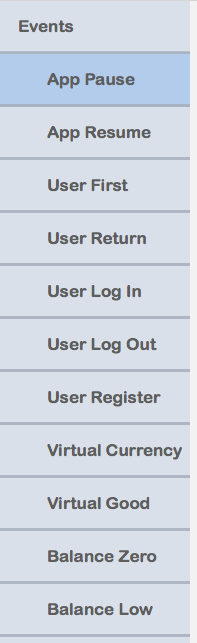
To add a new promotion to your application, click the Add New Promo button. A dialog appears to allow you to define the promotion’s Events & Preferences, User Segmentation, Design, Offer, and A/B Testing properties.
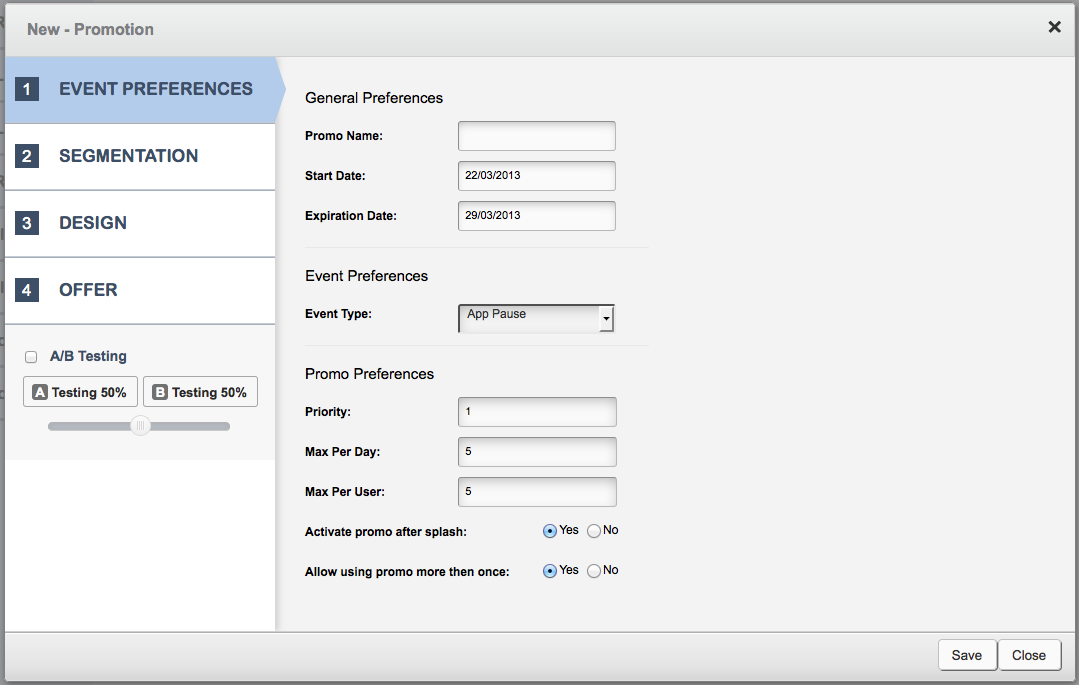
Event Prefences
The first step to defining a good promotion is configuring the Event Preferences. This includes information about the dates you wish to run the promotion, what Event Type to use—such as targeting first-time app users, in-app purchases, and more. You will be able to give the promotion a specific priority, which can be used in your promotion handling code to decide which promotions to show when multiple promotions are sent to an individual user. You can even set limits on how many times per day or per user this particular promotion may be displayed.
User Segmentation
The second step in promotion configuration is Segmentation—defining which spending, usage, location-based, age, or gender groups should see this particular promotion.
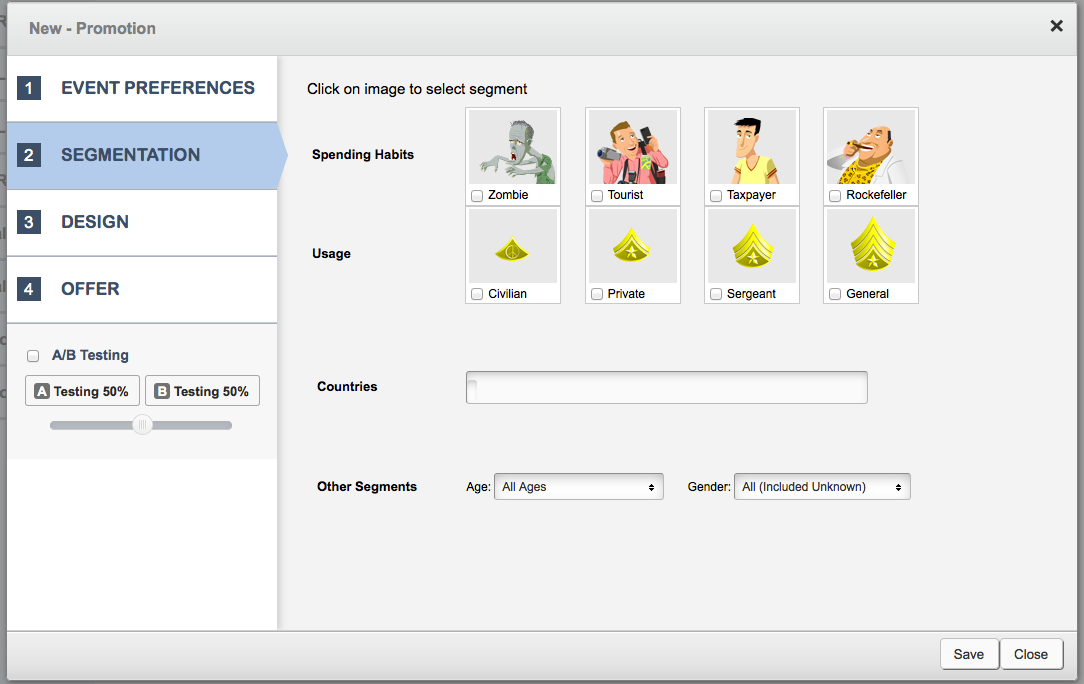
In case you are confused by the designations available for Spending Habits, the easiest thing to remember is that the rankings are presented in ascending order. A Zombie is a user who pretty much never makes in-app purchases; a Tourist occasionally makes in-app purchases; a Taxpayer somewhat regularly makes purchases; a Rockefeller is a user who spends heavily on purchases.
The situation is identical with Usage segmentation. A Civilian is a user who pretty much never uses the app; a Private occasionally uses the app; a Sergeant somewhat regularly uses the app; a General is a user who spends a lot of time with you, heavily using your app.
Design Assets
The third step of configuring promotion is Design. These are the images you want to use when displaying promotions to your users. Yu can be as simple or as complex as you’d like to be here—uploading single design assets to share across platforms, or being very specific with uploading art produced for exact screen dimensions and DPIs.
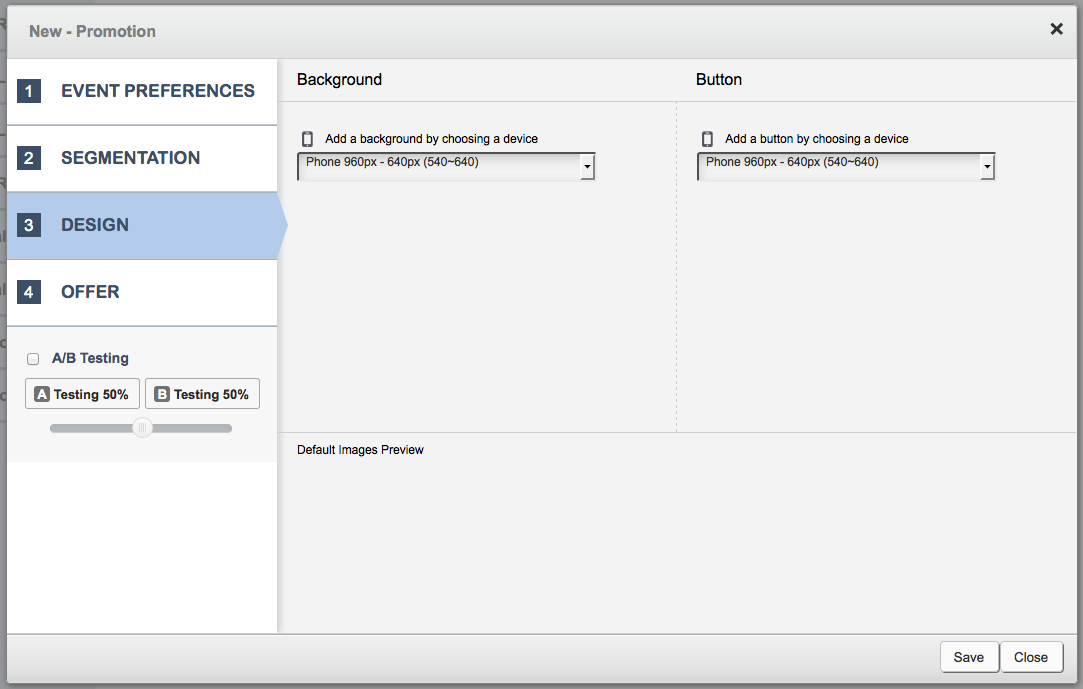
NOTE: If you are A/B testing a promotion, be mindful that the Design tab should be used to individually configure each testing phase (A and B). If you are A/B testing promotional design, be sure to click the buttons below the A/B Testing checkbox to set design assets properly.
Promotion Offers
The final step to setup a promotion is the Offer. Applicasa provides three types of offers at this time: Deals, Rewards, and Announcements.
Deals
A Deal is one of the most common types of revenue-generating promotions. You offer users an opportunity to purchase virtual currencies or virtual goods at a special price.
When offering a Virtual Currency deal, you are limited to those VirtualCurrency items that have been added via the IAP tab and marked as a Deal item (there will be a green check mark in the Deal column).
When offering a Virtual Good deal, you can select from any available VirtualGood item, set a special promotional price, and choose which kind of currency the deal is specific to—that is, either primary or secondary currency type.
Rewards
A Reward is another common promotion. You offer users an opportunity to receive virtual currencies or virtual goods at no charge.
When offering a Virtual Currency reward, you choose which currency type and the amount of that currency to gift to users.
When offering a Virtual Good reward, you can select from any available VirtualGood item, and if the user accepts it, they will receive the item inside your app.
Announcements
Announcements allow you the ability to inform users about important information that is relevant to your app or their experience. When configuring the announcement, you can provide either a URL or text value that will be sent as part of the promotion details, allowing in-app code to handle the announcement appropriately.
NOTE: If you are A/B testing a promotion, be mindful that the Offer tab should be used to individually configure each testing phase (A and B). If you are A/B testing promotional offers, be sure to click the buttons below the A/B Testing checkbox to set the offers properly.
A/B Testing
Applicasa focuses, above all, on providing powerful tools that inform and enable making intelligent decisions that increase an application’s success and revenue. To this end, because testing is a valuable addition to promotional efforts, you can A/B test promotional designs and offers to gather informative data on the effectiveness of your efforts.
To activate A/B testing, click the A/B Testing checkbox in the Promotion configuration dialog. You will notice that the Design and Offer tabs now show a large square with an A or B inside. This lets you know which test option you are currently configuring. To switch between the testing phase, click the A or B button below the checkbox.
Additionally, you can use the slider below the buttons to fine-tune exactly what percentage of users you want to receive each of the test scenarios. In the screenshot below, we’ve setup a promotion with A/B testing to send 70% of our users the A option, while 30% of our users will receive the B option.
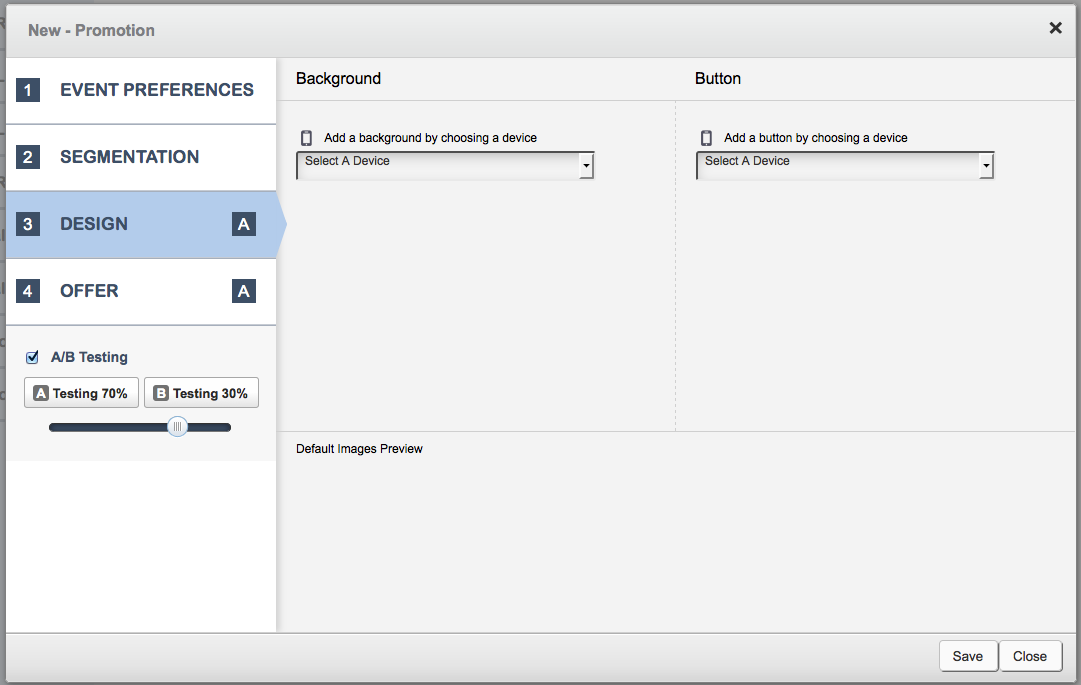
NOTE: If you are A/B testing a promotion, be mindful that the Offer and Design tabs should be used to individually configure each testing phase (A and B). Be sure to click the buttons below the A/B Testing checkbox to set designs and offers properly.
Handling Promotions
Handling promotions inside an application is both simple and straightforward. Applicasa provides a LiKitPromotions framework as part of the downloaded framework that is installed to an application. This handles all the hard work of checking for, receiving, and processing promotions Applicasa sends to a device based on promotion configuration.
Delegate Protocol
To monitor and respond to promotions that become available in your app, the recommended approach is to adopt the LiKitPromotionsDelegate protocol, and implement liKitPromotionsAvailable:
1 2 3 4 5 6 7 8 9 10 11 | |
NOTE: Adopting and implementing the delegate protocol is recommended because it frees developers from having to manually fetch and refresh available Promotions from the Applicasa service.
LiPromo class
If your application needs don’t match up with adopting the LiKitPromotionsDelegate protocol, you may take more control of promotion-handling with the LiPromo class. For example, to investigate the locally available promotions:
1 2 3 4 5 6 7 8 | |
To remain up-to-date throughout the app life cycle, developers will also want to refresh the local promotion list that has been synced from Applicasa to the device.
Calling [LiPromo refreshPromotions] will contact Applicasa and sync the latest promotions.
NOTE: If deciding to use LiPromo for promotion-handling, you will likely need to add calls in your application delegate, and potentially elsewhere, to handle fetching and refreshing the application’s local cache of available promotions.
Additionally, getAvailablePromosWithBlock: will return the results of the local promotions cache managed by Applicasa. If you forget to call refreshPromotions, the results can quicly become stale.
More Information
For more complete information on the features and functionality of the Applicasa SDK, visit the SDK Reference pages.
If you need additional support, clarification, see issues with the documentation, or anything else, please contact us.