iOS Guide — Getting Started
Applicasa frees mobile app developers from having to spend countless hours or days setting up backend data services to power, analyze, and monetize their applications. One of our primary goals has been to get you up and running, ready to start building your app in about 10 minutes. So, let’s get started. Before going any further, you should already have signed up for an Applicasa account and you should be logged in to the the web dashboard.
Create New App
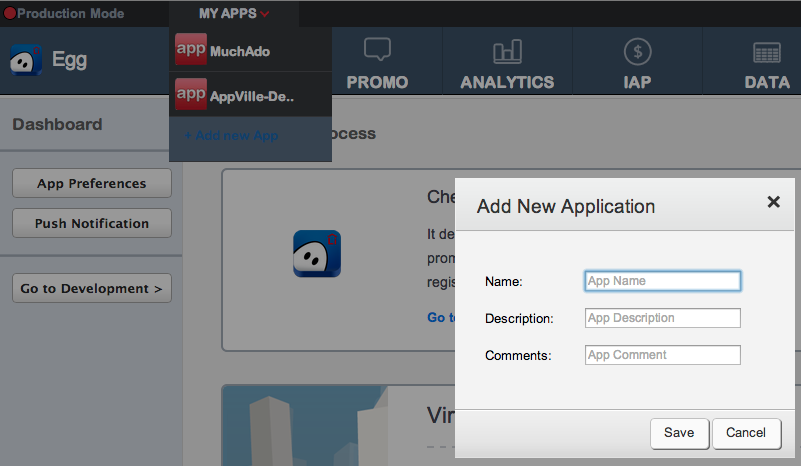
To create a new app, simply hover over the My Apps menu item at the top of the web dashboard and click Add New App. A dialog appears, prompting you to provide a Name, Description, and Comments for your new app. Name is required, and you can provide as much additional information as you’d like.
Download SDK and Framework
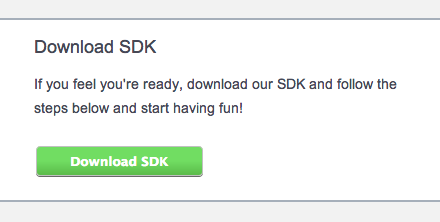
Now that our new app is created, we need to download the Applicasa SDK and Framework files necessary for development purposes. After creating your new app, Applicasa leaves you on your new application’s Dashboard screen. To download the SDK and frameworks, click the Download SDK button in the top-right panel.
Clicking Download SDK provides a dialog with buttons to download the SDK & Frameworks for iOS and Android. Choose the appropriate download for your application.
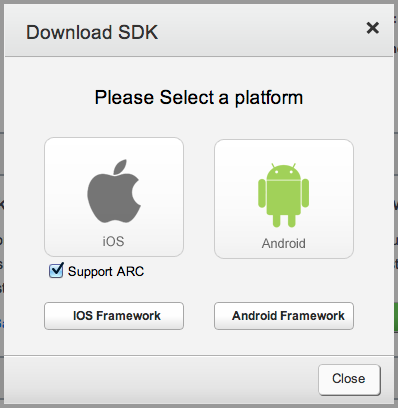
NOTE: You should have two downloads after completing this step: Applicasa_SDK.zip and Applicasa_Framework.zip. If you don’t have two zip files, ensure you clicked both buttons.
Include Applicasa
Now that you have Applicasa’s SDK and Framework(s) downloaded, let’s include them in your application. There are a few different ways you can do this, and it is assumed you’ve already downloaded both packages, as explained in the prior section. We suggest linking Applicasa into your application—versus copying the files directly into your project—as this should help ease future needs to upgrade the SDK & Framework(s). Of course, feel free to modify any of the steps that don’t apply to your project or your desired workflow and project structure.
Organize Project Files
Create a directory that will house your entire project. This includes Applicasa files, Xcode project and files, and any other items that may be needed for your particular application. Here, we create a project folder, and another folder that will contain all our Applicasa files. Then move/copy the unzipped Applicasa archives you downloaded into their own folder.
1 2 3 4 5 6 7 8 9 10 11 12 13 14 | |
New Xcode Project
File -> New -> Project(CMD+Shift+N)- Select type of iOS Application you wish to create
- Name application
- Choose additional options (ARC, Storyboard, etc.)*
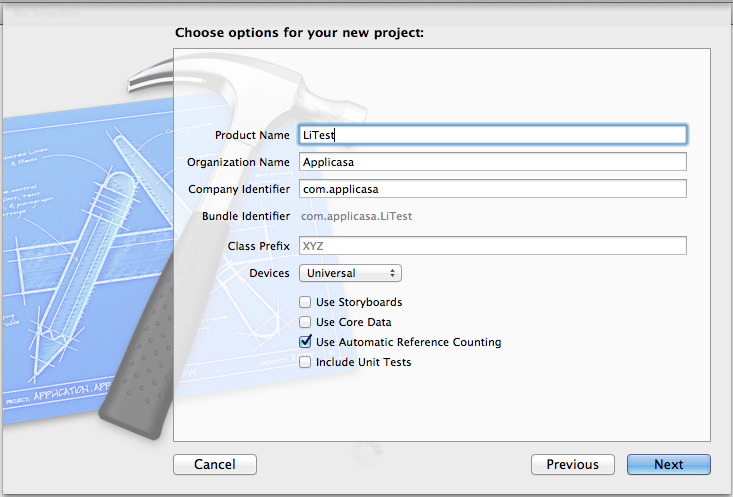
When prompted for save location, select the myproject folder created earlier.
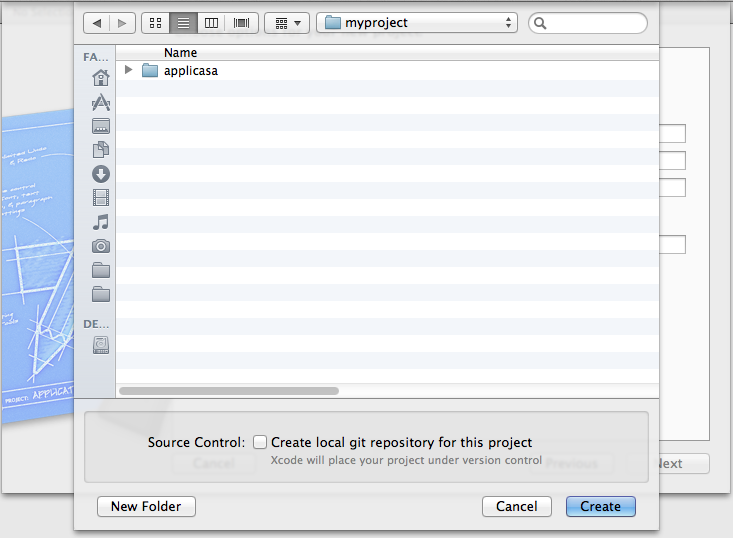
You should now have a project folder that looks something like this, complete with Xcode project and Applicasa files:
1 2 3 4 5 6 7 8 9 10 11 12 13 14 15 16 17 18 19 | |
Add Applicasa SDK
Now we need to add the Applicasa SDK to your application. You can either use Xcode’s menus or drag-and-drop from Finder to your project to complete this step. For clarity’s sake, we’re using in-app menus to be as explicit as possible and eliminate any confusion.
- Right-click the top-level folder/group in your project (
LiTestin our example) - Choose
Add Files to "[App Name]"
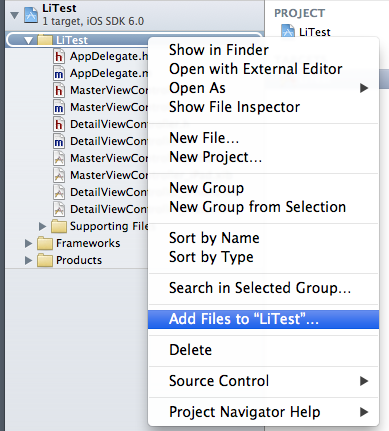
- Navigate up a couple levels to your
myproject/vendorfolder (or wherever you saved the Applicasa files) - Expand the
applicasafolder and select thesdkfolder - Ensure Copy items into destination group’s folder is NOT checked
- Ensure your application is checked in the
Add to targetsbox - Click
Add.
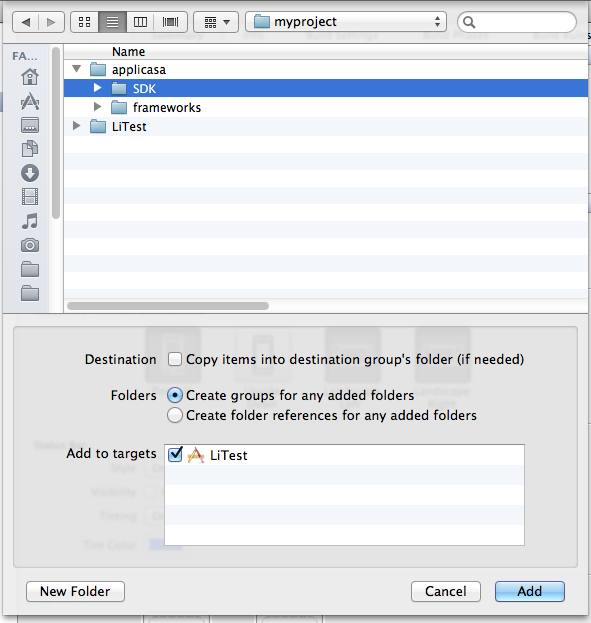
NOTE: One of the benefits of adding the SDK files in this way (by not copying them into the destination group’s folder) is that it eases the burden of updating the SDK files over the life of your project. When SDK updates are released, you can just copy updated SDK files into the sdk folder and Xcode will pick up the changes, or add new SDK files to your project in the same way.
Add Applicasa Frameworks
Adding frameworks to your application requires a few more clicks and steps, but don’t worry—just follow the steps below (with helpful screenshots) and you shouldn’t have any trouble at all.
- Click
[AppName]project icon at top of Xcode sidebar - Under
Targets, select[App Name] - Select
Build Phasestab - Expand
Link Binary With Libraries
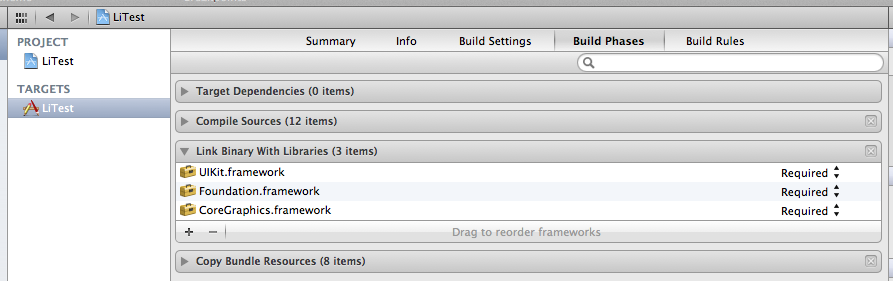
- Click
+button - Click
Add Other - Expand
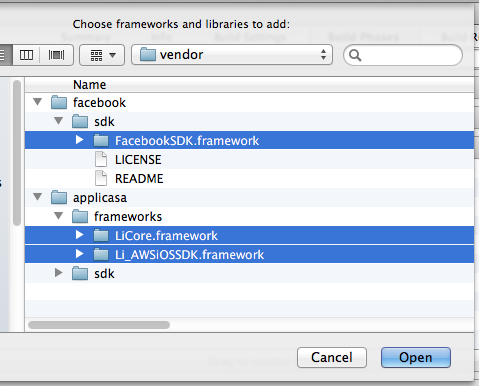
applicasa/frameworks/inside yourmyprojectfolder - Choose
LiCore.frameworkand clickOpen(or choose multiple frameworks at once, as shown below)
- Repeat steps 5-7 for each additional Applicasa framework downloaded
- Click
+button - Add
CoreLocation.framework,SystemConfiguration.framework,StoreKit.framework, andlibsqlite3.0.dylib - Drag each of the newly added frameworks to the Frameworks group to keep things organized
That’s it! We now have our application ready to go with all of the necessary frameworks installed to move forward.
NOTE: You can also add the downloaded frameworks to your project by dragging & dropping them from a Finder window onto the Frameworks group in the Xcode organizer.
Build Settings
Now that you’ve added the necessary frameworks and the SDK files to your project, it’s time to set the proper build settings.
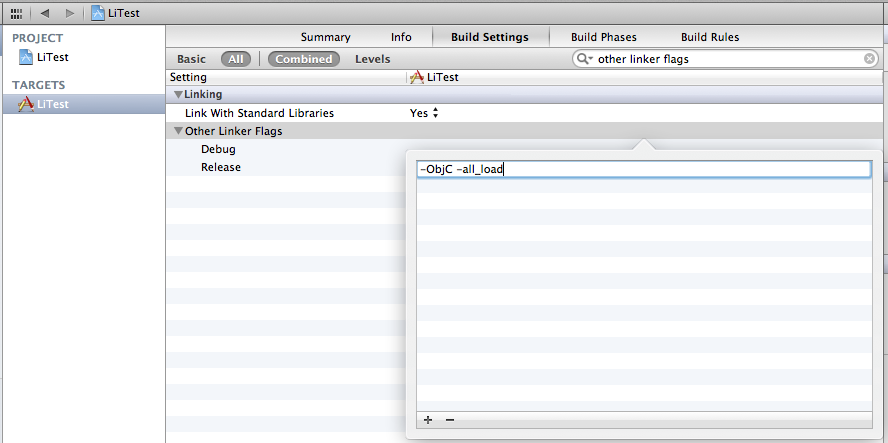
- Select the
Build Settingstab - Click
All(if it isn’t already selected) - Search for ”other linker flags”
- Double-click in the right column next to
Other Linker Flags - Click the
+button - Add
-ObjC -all_loadand pressReturn
NOTE: In rare circumstances, combining multiple third-party frameworks and SDKs can reveal subtle problems with the -all_load flag. In such cases, you may instead need to use the -force_load flag to correctly load the Applicasa frameworks without impacting other libraries.
Configure Applicasa
We’re nearly ready. To complete preparing the application for Applicasa integration, modify [LiConfig.h][LiConfig] with the necessary values that tell Applicasa about your app and how you want it to work. A sample LiConfig is shown below.
1 2 3 4 5 6 7 8 9 10 11 | |
The Application Keys are used to identify your app with the Applicasa backend services. Both keys are required to ensure successful operation. The Behavior Keys are used to control how Applicasa works in your app. Complete documentation of LiConfig [can be found here][LiConfig].
For verifying Applicasa is correctly integrated, we recommend setting ENABLE_DEBUG to YES. This setting is very helpful throughout development.
NOTE: It is important that you do not modify the SECRET_KEY or APPLICATION_ID values. These are set automatically for you whenever you download the SDK. Modifying them will cause your application to be unable to communicate with Applicasa.
Verify Successful Startup
Now that everything is included and configured properly, you should be able build the application without errors. Simply navigate to Project -> Build (CMD + B), and verify you’ve successfully included Applicasa in your application. If everything is connected properly, you should see Applicasa debug output in the Xcode console, like so:
1 2 3 4 5 | |
More Information
For a detailed walkthrough on how to use Applicasa in your applications, see the Applicasa Guide.
For more complete information on the features and functionality of the Applicasa SDK, visit the SDK Reference pages.
If you need additional support, clarification, see issues with the documentation, or anything else, please contact us.